Introduction
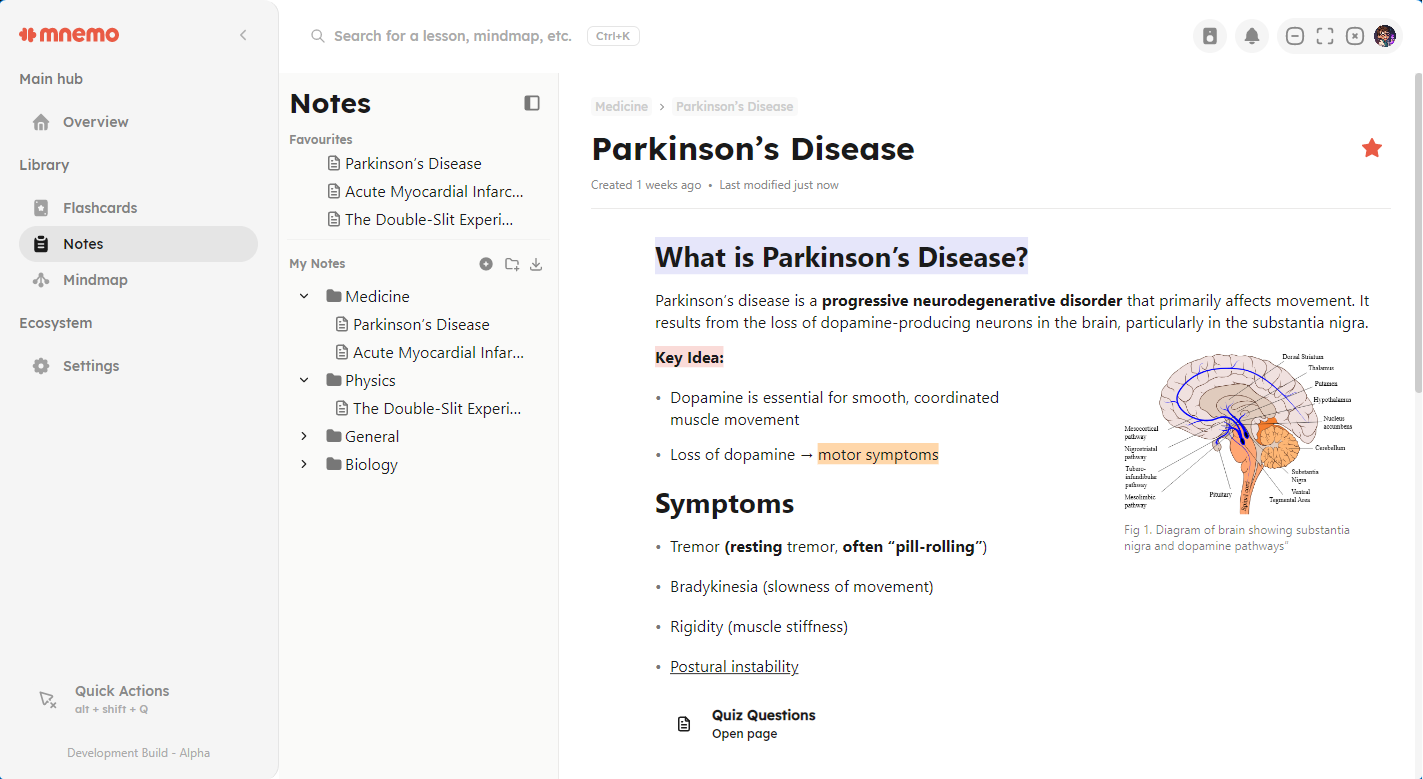
Notes is Mnemo’s powerful block-based editor for creating structured study notes, summaries, and reference material.
Every piece of content in Notes is a block. Blocks can be moved, formatted, duplicated, and organized to match the way you think and study.
What You Can Do in Notes
With Notes, you can:
- Write rich text with headings, lists, quotes, and code blocks
- Insert images, equations, dividers, and multi-column layouts
- Create nested pages inside other notes
- Organize content using folders and subfolders
- Favorite important notes for quick access
- Export notes to Markdown or Mnemo format
Block-Based Editing
Unlike traditional text editors, Notes is built around individual blocks.
Each paragraph, heading, image, or list item exists as its own movable block. This makes it easy to:
- Rearrange sections by dragging and dropping
- Insert new content anywhere
- Create structured, readable notes
- Build complex layouts with columns and nested pages
Organize Your Workspace
Notes are organized in folders shown in the sidebar.
You can:
- Create folders and subfolders
- Move notes and folders
- Collapse and expand folder groups
- Rearrange items by dragging
- Favorite notes for quick access
Rich Formatting
Notes supports advanced text formatting, including:
- Bold
- Italic
- Underline
Strikethrough- Text color
- Background color
- Highlights
- Subscript and superscript
- Inline equations
Insert Anything with Slash Commands
Type / anywhere in an empty block to open the slash menu.
From there, you can insert:
- Headings
- Lists
- Images
- Equations
- Dividers
- Columns
- Nested pages
- And more
Markdown Shortcuts
A way to really speed up your note-taking is through the use of markdown shortcuts. Instead of opening the Slash Commands everytime, you can type # + Spacebar and it is turned it into a Heading 1 block.
Here is a few more examples:
| Markdown | Result |
|---|---|
# | Heading 1 |
## | Heading 2 |
- | Bullet List |
1. | Numbered List |
> | Quote |
Nested Pages
By typing /page in an empty block you get the option to choose the Page block. This is a powerful block that enables you to create sub pages inside your notes. You can open the subnote by pressing the block like a button which, will navigate you down the stack. The title on the page block is derrived from the title of the subnote and can be changed from inside the nested page.
Its easy to become lost inside the world of nested pages, thats why there is a breadcrumb menu above the titlebar to help you navigate. Pressing on a item will navigate you back to that note.
NOTE: If the stack is to deep, the breadcrumb bar will condense into ... to save space. If you hover over the 3 dots a menu will appear showing the condensed structure
Favorites
Mark important notes as favorites by clicking the star icon in the top-right corner.
Favorited notes appear in the Favorites section at the top of the sidebar for quick access.
Export Your Notes
Notes can be exported in two formats:
.mnemo— Mnemo’s native file format.md— Standard Markdown format
Having Problems?
- Check out the Troubleshooting or reach out.